QuickStart: Create Your First Inventory Job in ARMOR
This guide walks you through creating your first Inventory job in the ARMOR platform and inviting users to begin collecting asset data immediately.
TABLE OF CONTENTS
Step 1: Log in to ARMOR
Go to https://app.armordata.io
or
https://armordata.com → Login → DashboardSign in using your ARMOR credentials.
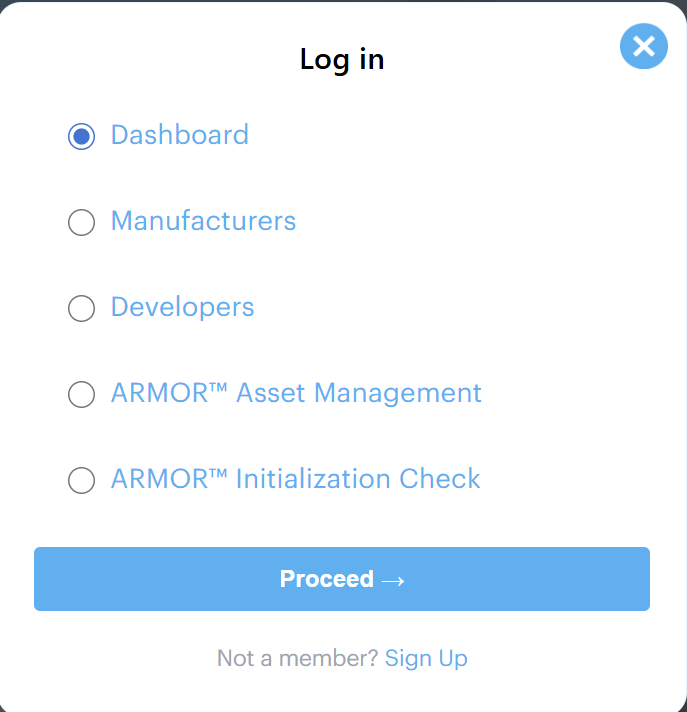
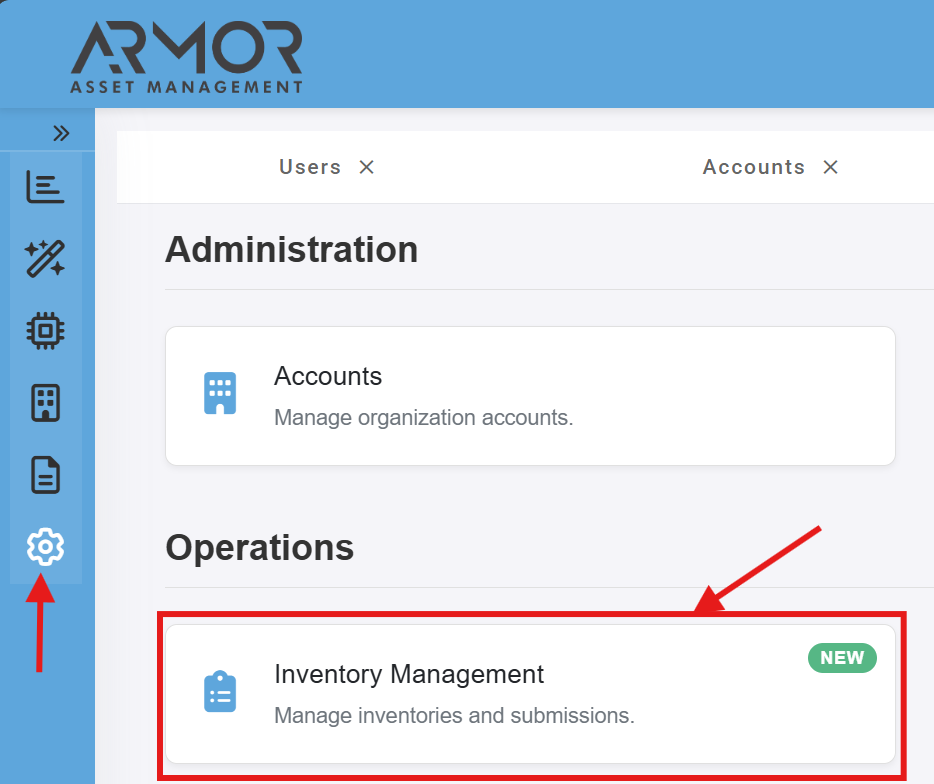
Step 2: Open Administration & Inventory Management
From the left navigation menu, click the Administration icon (cog wheel).
Inside Administration, click Inventory Management.
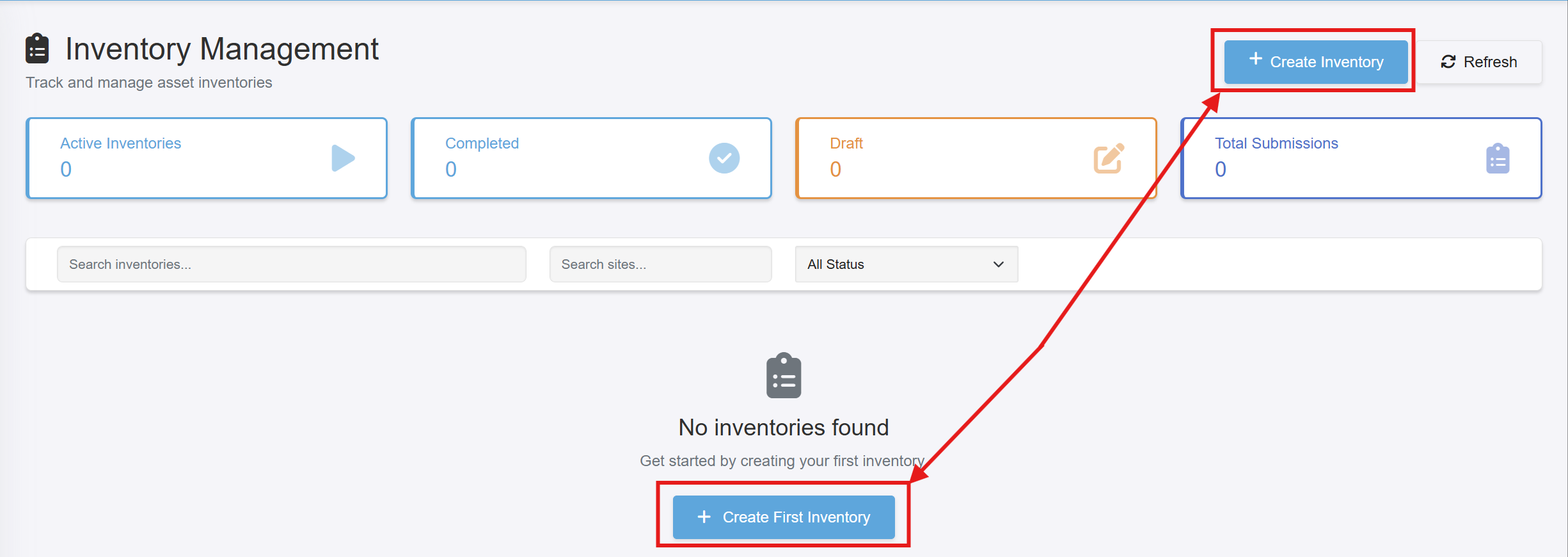
Step 3: Create a New Inventory Job
Click Create New to start the Inventory creation wizard.
Step 4: Complete the Inventory Wizard
Follow the guided steps in the wizard:
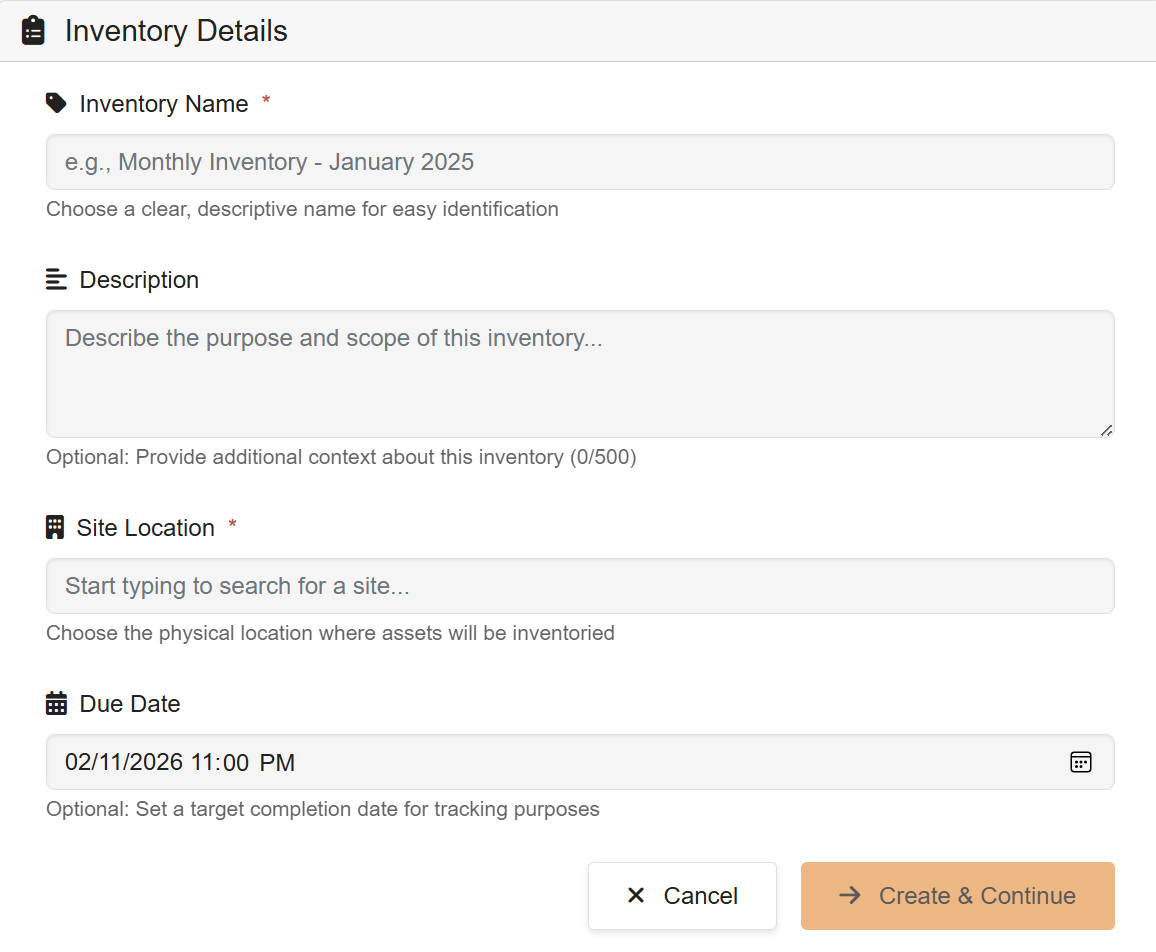
4a. Enter Inventory Details
Name your Inventory job
Add optional notes or instructions for collectors
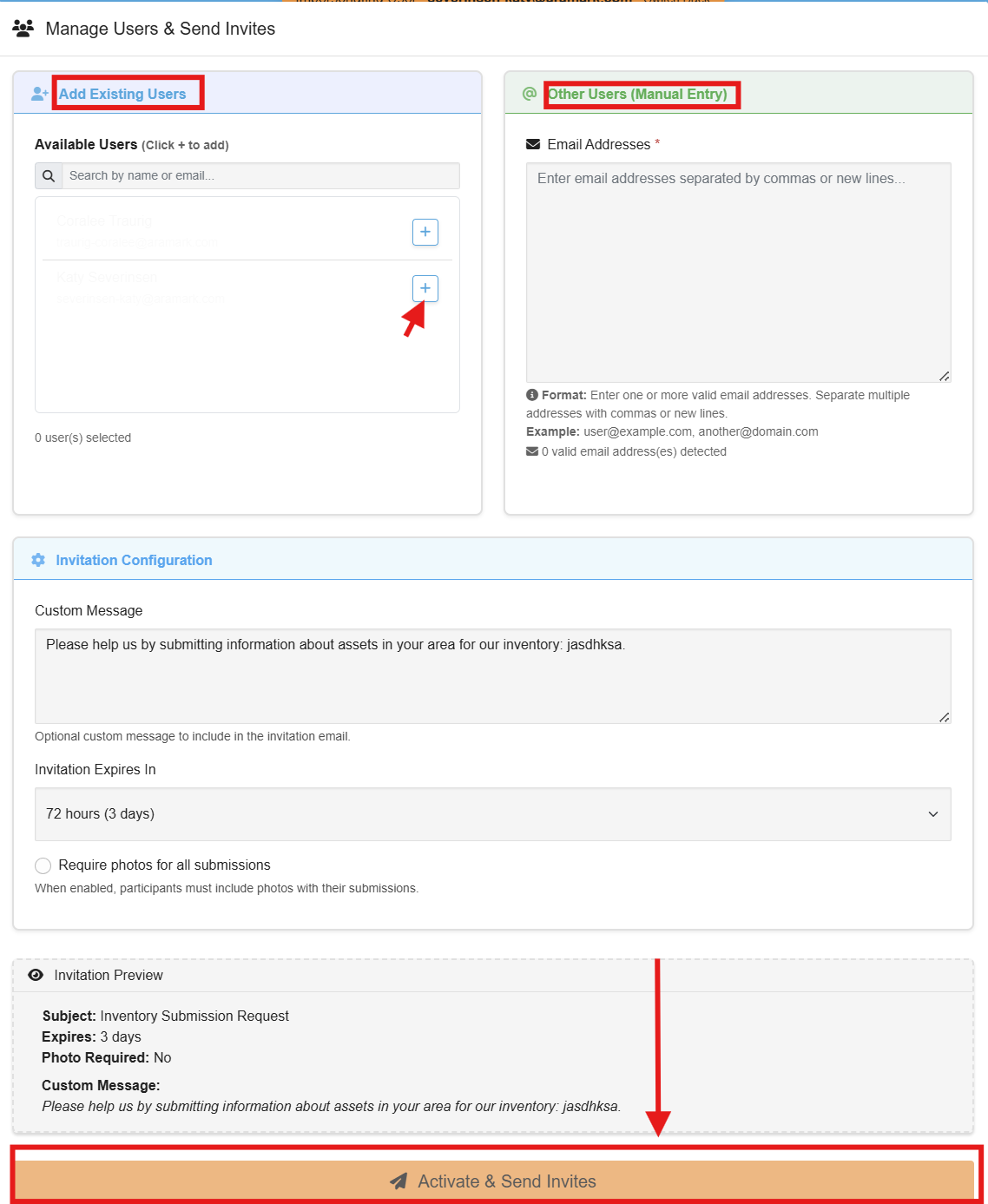
4b. Invite Users
Invite internal or external users by email
Users do not need an ARMOR account to participate
4c. Send Invites
Review the invite list
Send invitations to begin collection
Step 5: Monitor Inventory Progress
Click into the Inventory job at any time to:
Monitor submissions
Review collected assets
Track progress and completion
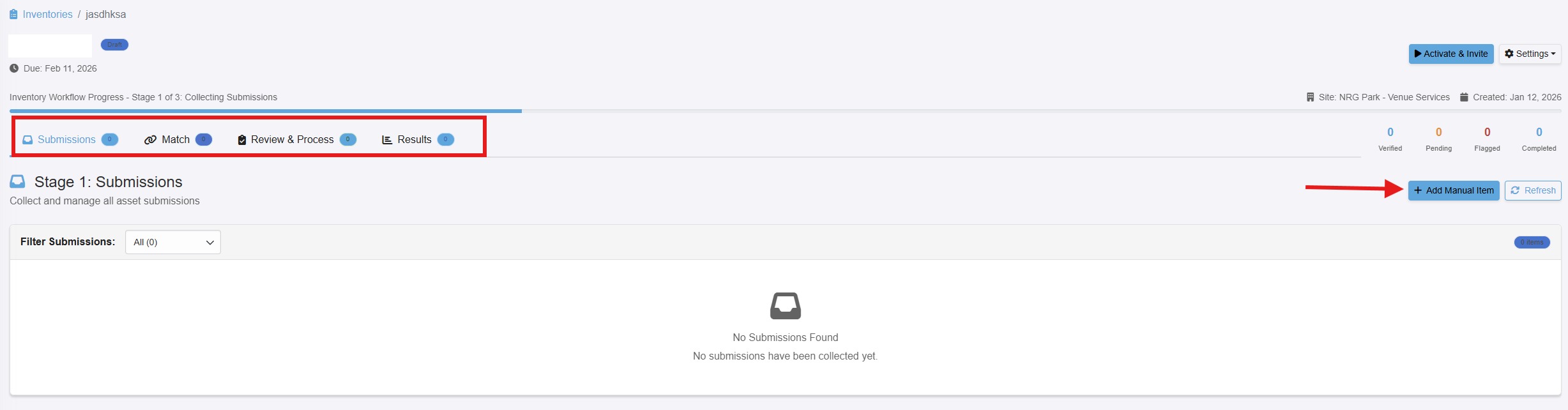
Submissions Tab
Approve - submission has been reviewed and approved for asset update or creation in ARMOR
Edit - Admin may edit submission details prior to approving
Flag - Not approved and will send the collecting user an email with details provided to recapture submission
Delete - delete from inventory system
Match or Review Tab
Match Tab
Review approved submissions and match to existing asset in ARMOR system
Create any non-automatic matches and move to Review tab
Review Tab
Review the list of matched and new assets to verify correct
Process all matches to update existing ARMOR assets with newly collected data
Process all new Assets to create new assets in the ARMOR system with collected data
Result Tab
View/Download the results files if needed.
Step 6: Inventory Completion
Once all submissions have been approved and processed you may choose the Complete Inventory button to lock the inventory and signal it is completed.
(All submissions must be approved or removed to allow completion)

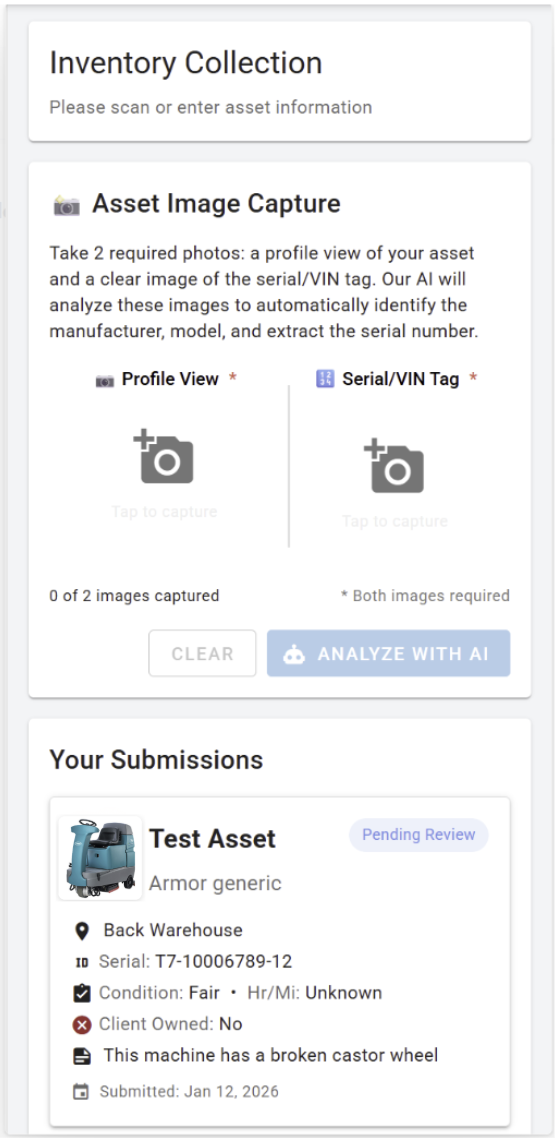
Step 7: Asset Collection by Users
Invited users receive an email with a secure link
Clicking the link opens a mobile-friendly inventory collection experience
Assets can be collected easily using a phone or tablet
-- ARMOR Support
Was this article helpful?
That’s Great!
Thank you for your feedback
Sorry! We couldn't be helpful
Thank you for your feedback
Feedback sent
We appreciate your effort and will try to fix the article